Tasks Module
The Tasks module is the central core of Planovik AI. It brings together personal planning, team projects, flexible scheduling, time tracking, geolocation, and bidirectional integration with the Knowledge Base. All other modules (Kanban, Documents, AI Assistant) sync with this unified data system.
Tip: Quick navigate to Tasks by pressing
1on your keyboard (or clicking Tasks in the sidebar ribbon).
1. Task Lists and Projects
Section titled “1. Task Lists and Projects”All tasks in the platform are organized into Lists and Projects within your selected workspace.
- Name and Color: Each list features a unique name and color badge for clear visual distinction.
- Data Isolation: Tasks belong strictly to a specified list and workspace, preventing accidental overlap between personal and work items.
- Management:
- Create list: Click ”+” next to the Projects section in the sidebar.
- Reorder & Sort (
sortOrder): Drag and drop items in the sidebar. - Delete list: Moves associated tasks to Trash or prompts for confirmation.
2. Ways to Create Tasks
Section titled “2. Ways to Create Tasks”2.1. Standard Creation Dialog (N)
Section titled “2.1. Standard Creation Dialog (N)”- Press
Nor click ”+ New Task”. - Enter the task title.
- Configure detailed properties: list, priority, start/due dates, estimated time, tags, subtasks, attachments, and location.
2.2. Smart Quick Input (Shift + A)
Section titled “2.2. Smart Quick Input (Shift + A)”
Pressing Shift + A opens a compact quick-add bar with automatic meta-tag parsing:
| Syntax | Description | Example Input | Result |
|---|---|---|---|
!1, !2, !3 (or p1, p2, p3) | Priority (1 = Low, 2 = Medium, 3 = High) | Prepare report !3 | Priority set to High |
@date / @day | Due Date | @today, @tomorrow, @monday, @2026-08-01 | Auto-sets due date |
+Project | Assign to List | Client call +Sales | Placed into Sales list |
#tag | Add Tags | Buy server #it #urgent | Adds tags it and urgent |
45m, 1.5h, 2h | Estimated Time | Write spec 2h 30m | Estimate 2h 30m |
Note: You can combine multiple smart tags in a single prompt:
Code review !3 @tomorrow 1.5h +Development #code_review
3. Task Card Features
Section titled “3. Task Card Features”Opening a task card gives access to a full suite of management tools:
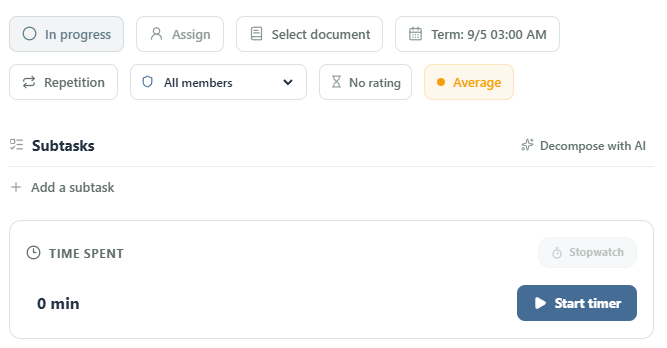
Control Panel Options:
Section titled “Control Panel Options:”| Control | Function |
|---|---|
| Task Status (“In Progress”) | Toggle current stage (In Progress, Completed, etc.). |
| Assignee (“Assign”) | Select a responsible teammate from workspace members. |
| Document Link (“Select Document”) | Bidirectional link between task and a document from the Knowledge Base. |
| Schedule | Set start date, due date, and exact times. |
| Repeat Rule (“Recurrence”) | Configure automatic task recurrence on schedule. |
| Edit Policy (“All Members”) | Restrict card editing rights (All / Assignee & Admins / Admins Only). |
| Time Estimate (“No Estimate”) | Set planned time budget for the task. |
| Priority (“Medium” / “High” / “Low”) | Select importance level with color coding. |
| Time Tracker & Stopwatch | Start live timer or log spent time manually. |
3.1. Subtasks
Section titled “3.1. Subtasks”- Create subtasks inside a task.
- Check off completed items.
- Edit subtask titles or delete unnecessary items.
- Progress bar shows completion percentage and item count (e.g.,
3/4or75%).
3.2. Time Tracking
Section titled “3.2. Time Tracking”- Estimated Time: Set planned time budget in hours and minutes.
- Stopwatch: Start built-in live timer right on the task card. Click “Start”, “Pause”, or “Stop”.
- Manual Time Entry: Manually log actual spent time with descriptive notes.
- Plan vs. Actual: System highlights spent time compared to planned estimate.
3.3. Recurring Tasks
Section titled “3.3. Recurring Tasks”Automate routine tasks:
- Interval: Daily, Weekly (with day selection Mon–Sun), Monthly, Yearly.
- Custom Step: Repeat every $N$ days, weeks, or months.
- End Criteria: Forever, until a specific date, or after $N$ occurrences.
3.4. Geolocation & Maps
Section titled “3.4. Geolocation & Maps”- Attach interactive map pins to tasks.
- Search locations by name or address.
- Store location names and exact GPS coordinates (latitude and longitude).
3.5. Knowledge Base Linking
Section titled “3.5. Knowledge Base Linking”- Link tasks to guidelines, specs, or notes in Documents.
- Clicking a linked document immediately opens the page in Knowledge Base.
4. Teamwork and Permissions
Section titled “4. Teamwork and Permissions”Planovik AI provides flexible role-based access controls in workspaces.
4.1. Assignee
Section titled “4.1. Assignee”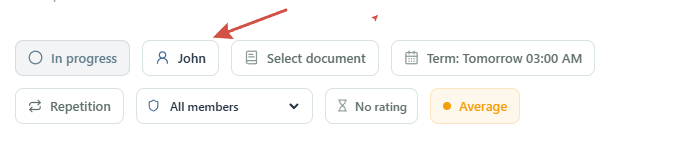
Assign team members from your current workspace. Assigned teammates receive instant notifications regarding task updates.
4.2. Edit Policies (“Who Can Edit”)
Section titled “4.2. Edit Policies (“Who Can Edit”)”The “Who Can Edit” setting on task cards protects key deliverables from accidental modifications.
Note: Only Owners and Admins can modify the Edit Policy of a task card.
Three access levels are available:
| Interface Option | Policy ID | Who Can Edit Card Properties |
|---|---|---|
| All Members | all_members (default) | Any member with Member, Admin, or Owner role |
| Assignee & Admins | assignee_and_admins | Assignee, task creator, Admins, and Owner |
| Admins Only | admins_only | Admins and Owner only (plus task creator) |
Guest Restrictions: Users with Guest role are strictly view-only. They can view task cards and post comments, but cannot edit fields regardless of policy setting.
4.3. Comments & @Mentions
Section titled “4.3. Comments & @Mentions”- Discussion thread is located at the bottom of task cards.
- Use
@nameto mention teammates for instant notifications. - Activity Log: All changes (priority, due dates, assignee, attachments) are recorded in activity audit trail.
5. Task Views (5 View Modes)
Section titled “5. Task Views (5 View Modes)”Switch views in the module header to analyze workload effectively:

- List / Table:
- High-density tabular layout.
- Quick column viewing and inline cell editing.
- Ideal for large datasets and batch updates.
- Cards:
- Grid layout of visual cards.
- Shows subtask progress, tags, attachment badges, and assignees.
- Calendar:
- Month and Week view modes.
- Visualizes tasks across start/due dates with drag-and-drop.
- Gantt Chart:
- Timeline view tracking task durations, dependencies, and schedules.
- Eisenhower Matrix:
- 4-quadrant layout based on Urgent × Important:
- Quadrant I: Urgent & Important (Do immediately).
- Quadrant II: Not Urgent & Important (Schedule in calendar).
- Quadrant III: Urgent & Not Important (Delegate).
- Quadrant IV: Not Urgent & Not Important (Delete or defer).
- 4-quadrant layout based on Urgent × Important:
6. Filters, Sorting & Batch Actions
Section titled “6. Filters, Sorting & Batch Actions”6.1. Search & Filters
Section titled “6.1. Search & Filters”- Search (
/): Press/to focus full-text search. - Filter Bar:
- By status (Active / Completed / All).
- By priority (Low / Medium / High).
- By lists, tags, creators, and assignees.
- By due dates (Overdue, Today, This Week, No Date, Custom Range).
- By attachments, maps, linked documents, or subtasks.
6.2. Batch Actions
Section titled “6.2. Batch Actions”
Select multiple tasks via checkboxes to invoke the floating batch action bar:
- Complete: Batch mark selected tasks as complete.
- Reopen: Set task status back to active.
- Set Priority: Batch set priority (Low, Medium, High).
- Move: Transfer tasks to another project or list.
- Delete: Batch move selected tasks to Trash.
7. Trash & Task Recovery
Section titled “7. Trash & Task Recovery”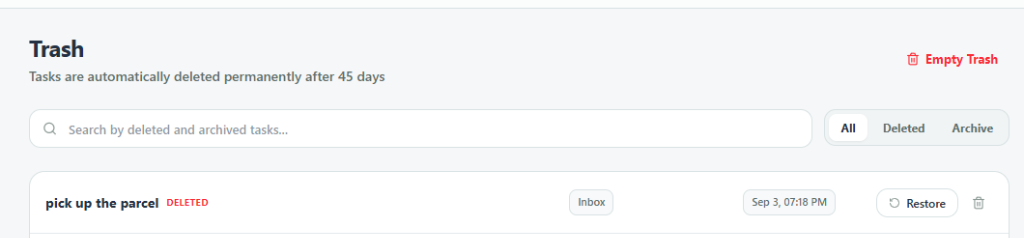
Deleted tasks are moved to Trash with a red DELETED badge:
- Soft Delete: Tasks remain in Trash preserving all subtasks, attachments, comments, and metadata.
- Restore (Green Button): Instantly restore tasks back to their original list.
- Delete Permanently (Red Button): Permanently erase tasks or empty trash after confirmation.
8. Keyboard Shortcuts
Section titled “8. Keyboard Shortcuts”| Shortcut | Action |
|---|---|
N | Create new task |
Shift + A | Quick smart add |
C | Mark selected task as complete |
D | Duplicate task |
/ | Focus search bar |
Esc | Close task card or modal |
Shift + / (or ?) | Open full shortcuts cheat sheet |
Alt + K / Ctrl + Space | Open AI Command Center |
Alt + I | Toggle AI Assistant drawer |
1 – 9 | Switch ribbon modules (1 = Tasks) |
9. Offline Mode & Local Synchronization
Section titled “9. Offline Mode & Local Synchronization”Planovik AI is engineered with a Local-First architecture:
- Instant Response: All reads and writes occur locally first in browser DB (IndexedDB).
- Offline Outbox Queue: Edits made while offline are queued locally. Offline status badge appears in header.
- Auto Sync: When connection restores, queued changes automatically push to cloud server.
- Conflict Resolution: Concurrent edits on multiple devices (HTTP 409 Conflict) trigger smart field merging or let you pick the active version.
Related Documentation
Section titled “Related Documentation”- 🛹 Kanban Module — visual columns and pipeline management.
- 📚 Knowledge Base — creating documents and linking specs.
- 👥 Team and Workspaces — members, roles, and permissions.
- 🤖 AI Assistant — automated task generation and prompt workflows.
- 🔌 External API — creating and fetching tasks via API keys.