Habits Module
The Habits module helps you build and sustain regular routines — from simple daily rituals to quantitative targets (water intake, meditation minutes, pages read). The system automatically tracks streaks, highlights progress, and provides detailed analytics.
Tip: Quickly navigate to Habits by selecting Habits in the module ribbon or sidebar menu.
1. Module Interface
Section titled “1. Module Interface”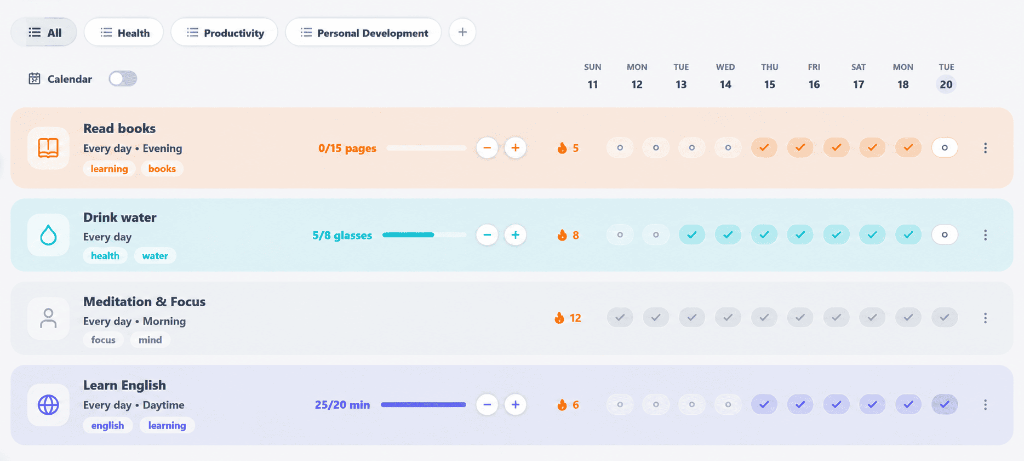
The main module screen is organized for quick completion logging and a clear visual overview:
- Categories and Lists:
- “All” — System display showing all created habits.
- “Default” — Base list for habits without a specific category.
- Custom Categories — Personal habit lists (e.g., Health, Productivity, Growth).
+Button — Create a new custom list.
- Interactive Calendar: Days of the week ribbon with date selection and expanded calendar toggle.
- Habit Card:
- Name & Schedule: e.g., Meditation & Focus (Every day • Morning).
- Color Tags: Category badges (focus, mind, Health).
- Streak Counter (Flame 🔥): Displays current continuous streak in days (e.g., 🔥 12, 🔥 3, 🔥 1).
- Check Buttons: Day-by-day marker circles for fast logging.
2. Habit Types
Section titled “2. Habit Types”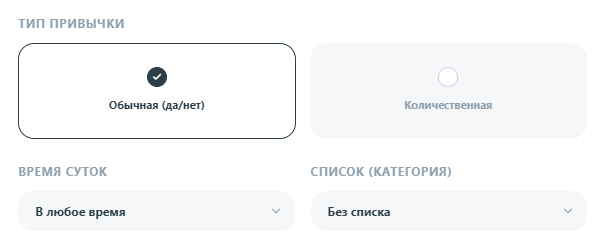
Two key habit formats are available in the creation form:
- Regular (Yes/No): Binary completion check with a single click per day.
- Measurable (Quantity): Accumulative counter with a daily target (e.g., 8 glasses of water, 30 minutes reading, 10,000 steps, or custom units).
Directly below the type selection, configure linking parameters:
- Time of Day: Preferred execution period (Any time, Morning, Afternoon, Evening).
- List (Category): Select a list for grouping (or No list).
3. Frequency and Schedule
Section titled “3. Frequency and Schedule”Set a precise schedule when creating or editing a habit:
- Every Day — Daily regular rituals.
- Multiple Times a Day — Split into intervals.
- By Days of Week — e.g., Mondays, Wednesdays, and Fridays.
- By Days of Month — Specific calendar dates (1–31).
Optionally configure Time of Day: Morning, Afternoon, Evening, or Any time.
4. How to Create a Habit
Section titled “4. How to Create a Habit”
- Open Habits ➔ click the round
+button in the top right header. - In the modal, enter the habit name and description.
- Select type (regular or measurable), set target goal and unit of measurement.
- Configure schedule (daily, by weekdays, or month dates) and time of day.
- Set theme color, icon, and category list assignment.
- Add precise reminders (e.g.,
09:00or18:00) for device notifications. - Click Save.
5. Logging Completions & Streak Mechanics
Section titled “5. Logging Completions & Streak Mechanics”Daily habit tracking revolves around fast logging and watching continuous streaks grow:
- Daily Logging:
- For regular habits — click the day circle marker directly on the card. The icon changes to a green checkmark.
- For measurable habits — input actual logged amount for the day. Progress bar automatically fills towards target.
- Past Date Logging: Switch dates in the top calendar to view history or fill in missed days.
- Streak Mechanics (Flame 🔥):
- Current Streak: Increments by +1 for every day completed according to your schedule.
- Reset Rule: If a scheduled day is missed, current streak resets to 0, but your best record remains saved in stats.
6. Statistics and Analytics
Section titled “6. Statistics and Analytics”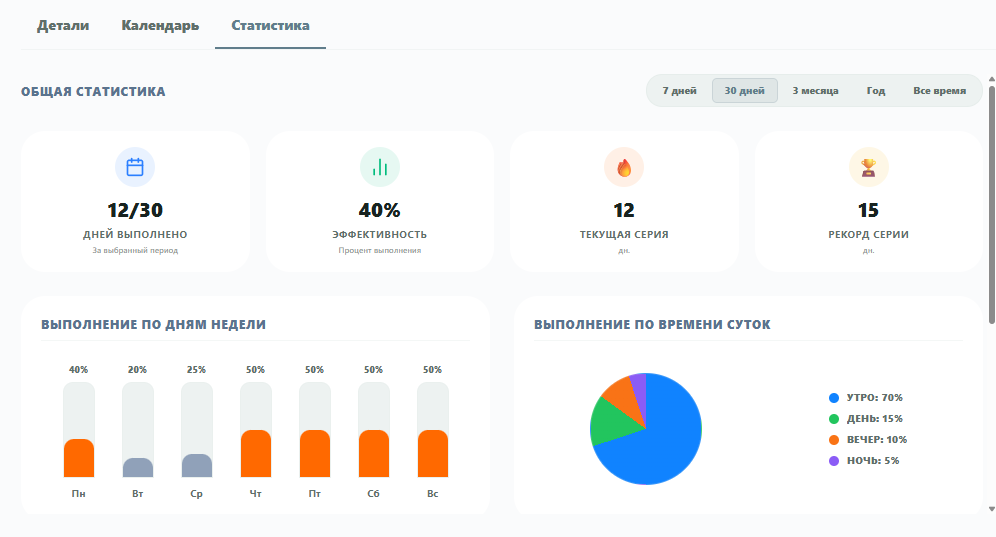
The Statistics tab on a habit card provides detailed analysis of consistency and highlights peak productive periods:
- Period Selection: Filter metrics by 7 days, 30 days, 3 months, Year, or All time.
- Key Overall Metrics:
- Days Completed: Ratio of actual completed days to total period length (e.g.,
12/30). - Completion Rate: Percentage of completed target checks for the period (e.g.,
40%). - Current Streak (🔥): Number of consecutive days completed without a miss.
- Best Streak (🏆): Historical record streak achieved for the habit.
- Days Completed: Ratio of actual completed days to total period length (e.g.,
- Analytics Charts:
- Completion by Day of Week: Bar chart showing performance Mon–Sun to identify most productive days or risk of missed habits.
- Completion by Time of Day: Pie chart illustrating logging distribution across time slots (Morning, Afternoon, Evening, Night).
7. Local Storage and Sync
Section titled “7. Local Storage and Sync”- All habits and historical logs are saved locally in browser (IndexedDB) and remain accessible offline.
- Data automatically syncs with cloud server when internet connection is restored.
- Soft-delete allows restoring accidentally deleted categories and habits.