Knowledge Base Module (Documents)
The Knowledge Base module stores all workspace documentation: guidelines, specs, policies, meeting notes, and personal thoughts. All pages feature Markdown support, instant local browser saving, cloud sync, and strict workspace isolation.
Tip: Quickly navigate to Knowledge Base by selecting Knowledge Base in the left ribbon or using navigation keyboard shortcuts.
1. Module Interface
Section titled “1. Module Interface”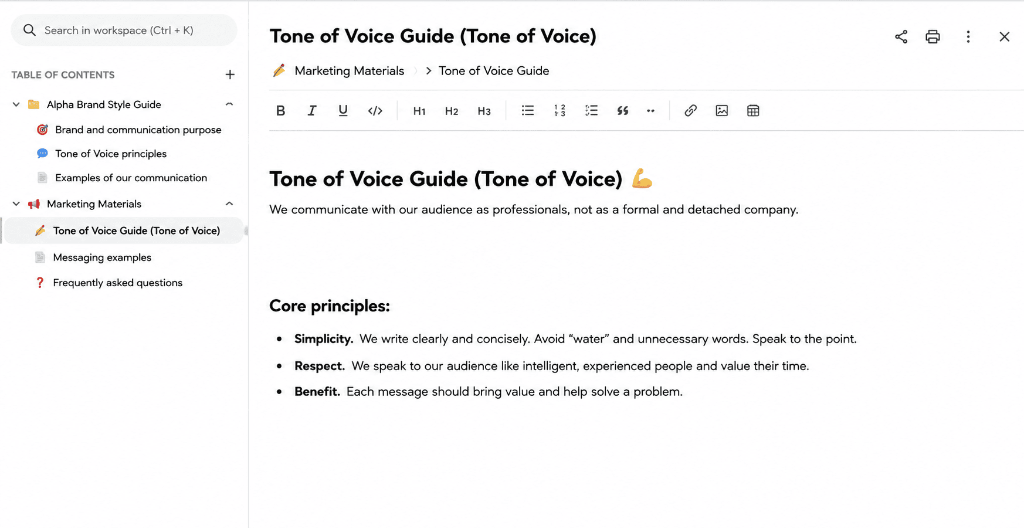
The main screen consists of two primary zones — the tree navigation sidebar and the document editor canvas:
- Left Panel (Navigation Tree):
- Document Search: Search bar for filtering pages by title and content keyword search.
+Button at Header: Instantly create a new root document.- Hierarchical Structure: Tree of pages showing nested sections (e.g., Knowledge Base: Getting Started, Alpha Project, Marketing Strategy).
- Pin Icons (📌): Quick visual indicator for pinned documents.
- Context Menu (
...): Options for renaming, pinning, creating nested subpages, and deleting.
- Right Panel (Editor Canvas):
- Document Header: Displays icon, page title, and action buttons for printing and link copying.
- Mode Switcher: Toggle between Visual (WYSIWYG) and Markdown editor modes.
- Formatting Toolbar: Text styling tools (bold, italic, strikethrough, H1–H3 headings, bullet and numbered lists, checklists, blockquotes, code, tables, and links).
- Editor Workspace: Reading and editing document canvas.
2. Document Structure & Hierarchy
Section titled “2. Document Structure & Hierarchy”Documents are organized in a logical tree with unlimited nesting depth:
- Root Documents — Top-level project sections and knowledge hubs.
- Nested Pages — Child subpages and technical specifications.
- Tree Expand/Collapse: Clicking the chevron icon (▸ / ▾) expands or collapses subpages without switching the active page.
- Pinning Documents: The “Pin” action moves critical pages to the top of their level.
Warning: Deleting a parent document deletes all of its nested child pages after explicit user confirmation.
3. Creating Pages
Section titled “3. Creating Pages”Creating a Root Document
Section titled “Creating a Root Document”
- Open Knowledge Base.
- Click
+at the top right of the KNOWLEDGE BASE header in the left navigation tree. - In the new document template, enter your title in the header input.
- Input formatted content in the editor canvas — all edits save automatically.
Creating a Nested Document
Section titled “Creating a Nested Document”- Hover over a parent page in the left tree.
- Open context menu
...➔ select Create Subdocument. - The new child page automatically opens for editing.
4. Editor and Formatting
Section titled “4. Editor and Formatting”All documents save in Markdown format. Two editor modes are provided:
- Visual Mode (WYSIWYG) — Rich formatting via toolbar buttons with instant style rendering.
- Markdown Mode — Direct raw Markdown text source editing.
Available Formatting Tools
Section titled “Available Formatting Tools”- Text Styling: Bold, italic, strikethrough, inline monospace code.
- Headings: H1, H2, and H3 elements for structuring documents.
- Lists: Bulleted, numbered, and checklist with completion checkmarks.
- Blocks: Blockquotes, syntax-highlighted code blocks, horizontal rules.
- Elements: Hyperlinks and interactive Markdown tables.
- Header Actions: Print button (triggers browser print dialog) and Share button (copies direct URL link).
5. Knowledge Base Search
Section titled “5. Knowledge Base Search”The search bar above the document tree supports two search modes:
- Title Search — Instant character filtering of page titles in the tree.
- Full-Text Search — Server-side full-text search inside page content (triggers upon entering 3+ characters or hitting
Enter).
6. Linking Documents to Tasks
Section titled “6. Linking Documents to Tasks”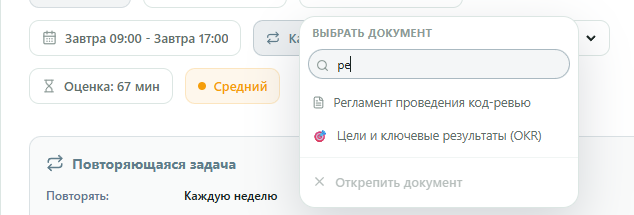
Any page from Knowledge Base can be linked to a card in the Tasks module:
- Open a task card ➔ click the “SELECT DOCUMENT” dropdown menu.
- Use the search input to filter documents by title.
- Select the desired document from the results (e.g., Code Review Guidelines).
- To unlink a document, click ”✕ Unlink Document” at the bottom of the dropdown.
- The title of the linked document displays on the task card — clicking it opens the page in Knowledge Base.
7. Synchronization and Storage
Section titled “7. Synchronization and Storage”- Documents are isolated by workspace.
- All edits save locally in browser storage (IndexedDB) and sync to the cloud server.
- The last opened document automatically restores upon returning to the module.
8. External API
Section titled “8. External API”The current External API provides access to workspaces, projects, and tasks. Knowledge base documents are not yet available through personal API keys.