AI Assistant Module
The AI Assistant in Planovik AI is a full-featured intelligent helper capable of executing natural language commands. It can create and structure tasks, manage Kanban boards, record financial transactions, and search knowledge base documents.
Tip: Quickly trigger AI Assistant: Press
Alt+Ifor the side drawer orAlt+K/Ctrl+Spacefor the Command Center.
1. Interfaces and Smart Window Positioning
Section titled “1. Interfaces and Smart Window Positioning”The AI Assistant is available in two usage formats:
- Command Center (
Alt+K/Ctrl+Space) — Compact floating overlay input bar for quick prompt execution. - AI Drawer (
Alt+I) — Full-featured conversation chat with prompt history and visual confirmation cards.
Automatic Window Shifting When Opening Tasks
Section titled “Automatic Window Shifting When Opening Tasks”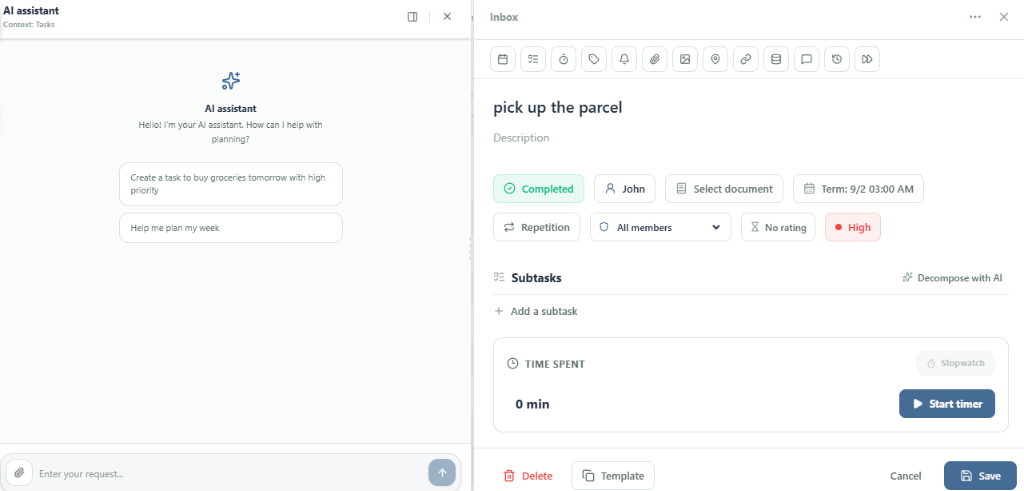
The assistant interface adapts to your working context: when you open a task card or detailed Kanban drawer, the AI Assistant window smoothly shifts to the side of the screen. It automatically docks alongside your active workspace without obstructing task text, subtasks, due dates, or assignees. This allows you to converse with the assistant (e.g., requesting task analysis) while editing task details simultaneously.
2. Security and Action Confirmation Cards
Section titled “2. Security and Action Confirmation Cards”All AI operations fall into two categories:
- Read & Analytics (document search, spending totals, task digests) — Executed instantly displaying visual summary report cards.
- Create & Mutate Data (adding tasks, moving Kanban cards, logging expense) — Presented first as an Action Confirmation Card.
You can review suggested action parameters (title, due date, amount, priority), edit fields directly in the card if needed, and click Confirm to execute.
3. Module Capabilities
Section titled “3. Module Capabilities”Tasks & Planning
Section titled “Tasks & Planning”- Task creation via natural language text prompts.
- Automated decomposition of complex projects into subtasks.
- Assigning teammates, setting priorities, and scheduling due dates.
Kanban Boards
Section titled “Kanban Boards”- Adding new cards to target columns.
- Moving cards across status lifecycle stages.
- Sorting, archiving, and board updates.
Finance & Budgets
Section titled “Finance & Budgets”- Fast text logging for spending and income (e.g., Log expense $50 for groceries).
- Generating visual income and expense summaries for selected timeframes.
- Monitoring remaining budget limits.
Knowledge Base (Documents)
Section titled “Knowledge Base (Documents)”- Semantic search across guidelines and documentation.
- Drafting documentation, guidelines, and articles.
- Summarizing lengthy notes and extracting key takeaways.
4. Keyboard Shortcuts
Section titled “4. Keyboard Shortcuts”| Shortcut | Function |
|---|---|
Alt + I | Open / close AI Assistant drawer |
Alt + K | Open Command Center |
Ctrl + Space | Alternative Command Center trigger |
Shift + / | Keyboard shortcuts cheat sheet |